
Follow this step-by-step guide to grant Manager role access to MonetizeMyanmar. There are two methods you can use.
YouTube channels can be created in two ways: some are created directly from a Personal Google Account, while others are created through a Google Brand Account (typically used for business or organization channels). Depending on how your channel was created, you'll need to use the appropriate method below to grant us Manager role access. If you're unsure which type you have, try Method 1 first as it works for most creators.
Manager Email Address
monetizemyanmar@gmail.com
Use this email when inviting us as Manager
The easiest and most common method for most creators
Go to studio.youtube.com and sign in to your YouTube account.
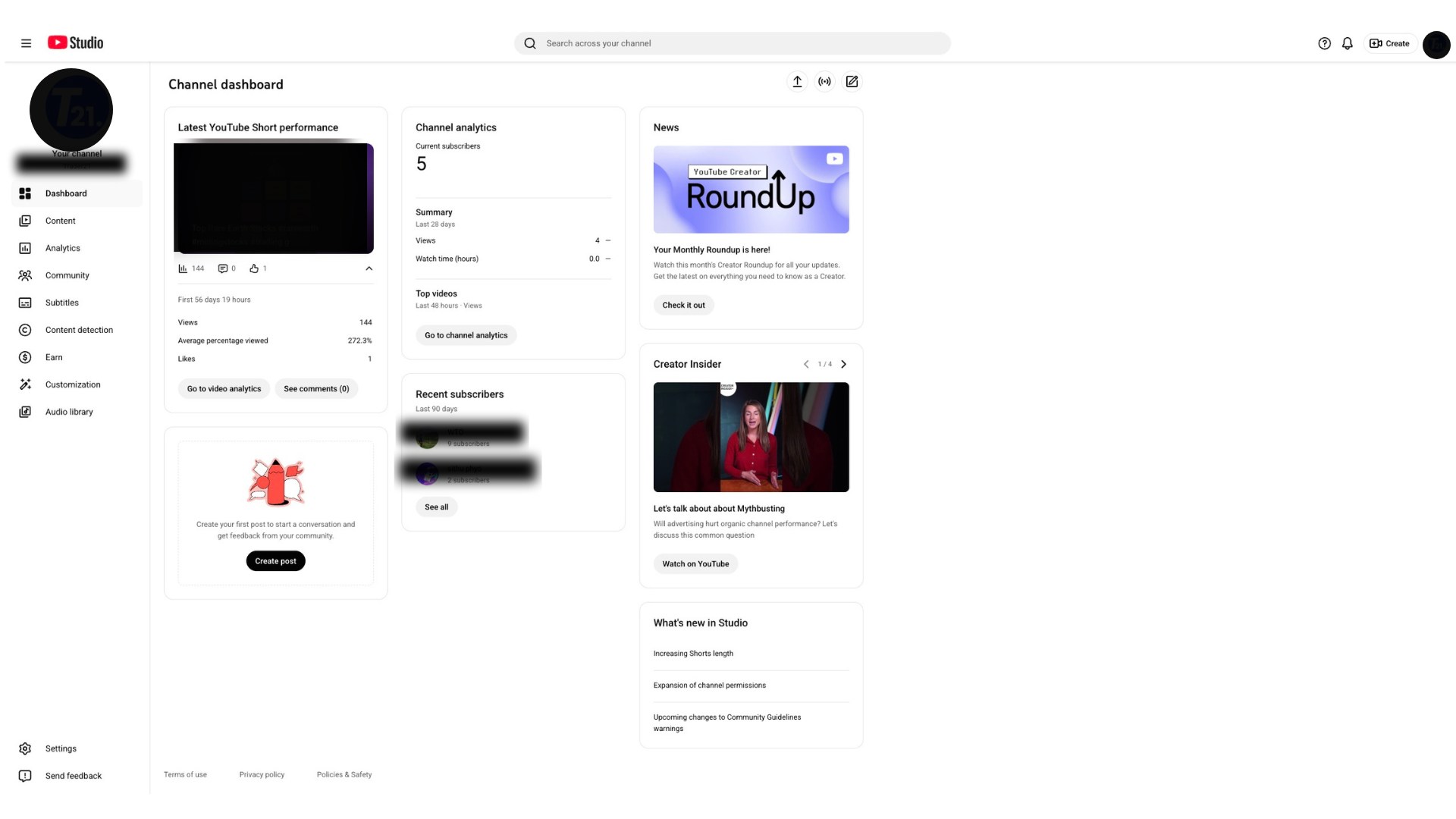
Screenshot: YouTube Studio Dashboard
Click on Settings in the left sidebar menu.
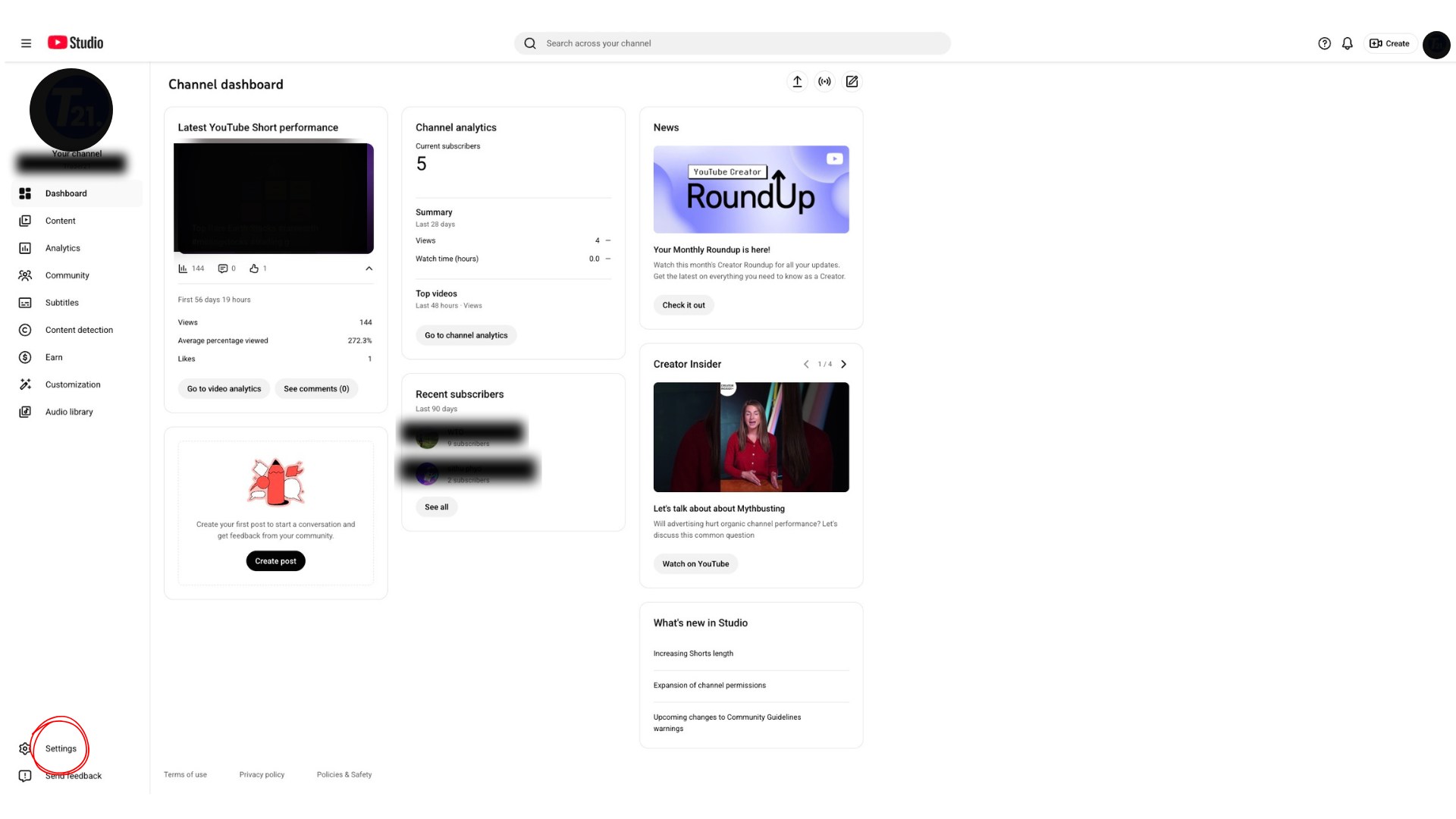
Screenshot: Settings menu location
In Settings, click on Permissions tab to manage who can access your channel.
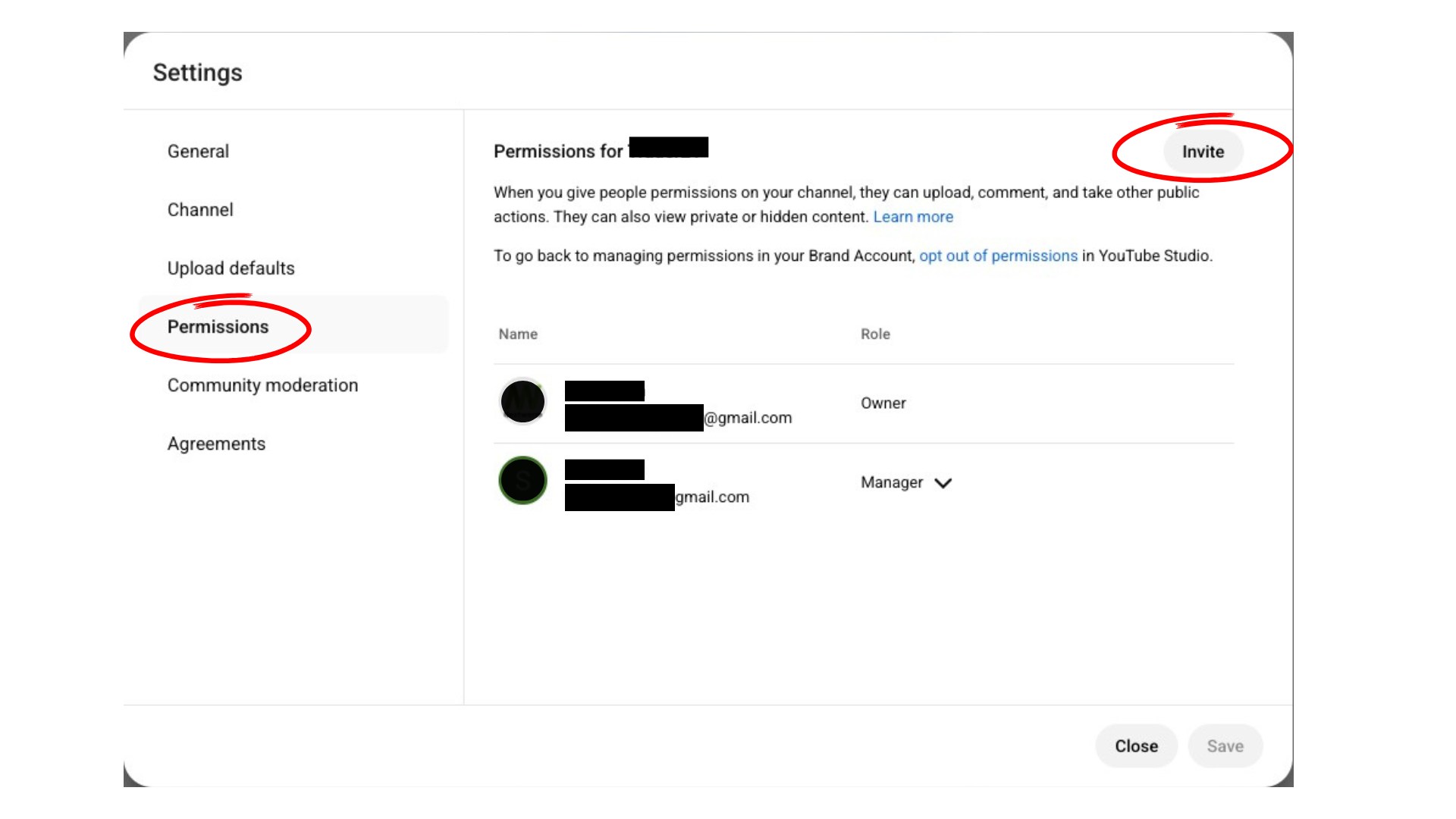
Screenshot: Permissions tab
Click Invite button and enter monetizemyanmar@gmail.com. Select Manager as the role.
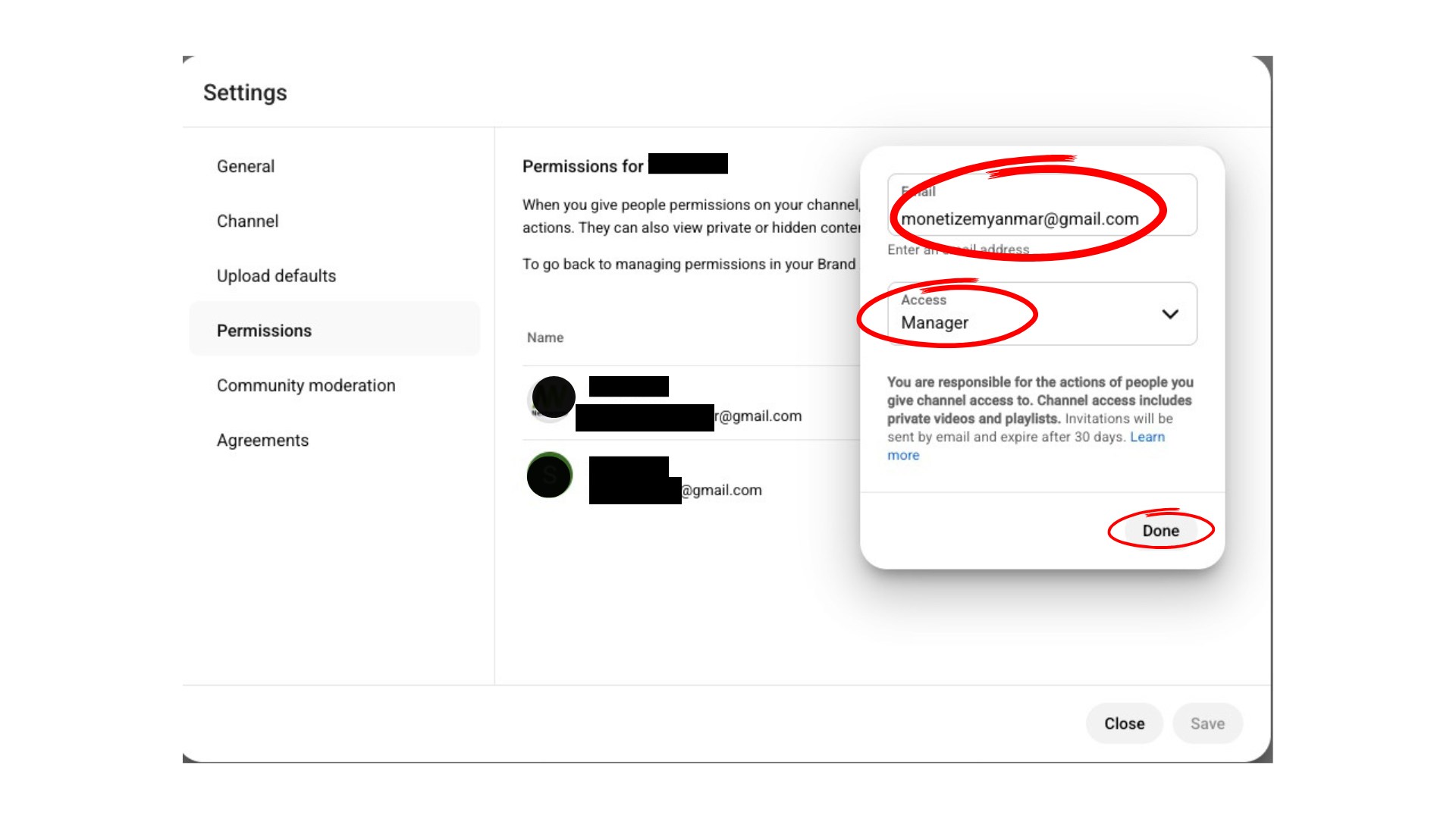
Screenshot: Invite dialog with Manager role
Review the permissions and click Done to send the invitation. We will accept it within 24 hours.
Done! You have successfully granted Manager permission through YouTube Studio.
For channels linked to a Brand Account (usually business or organization channels)
Go to myaccount.google.com and navigate to your Brand Account settings.
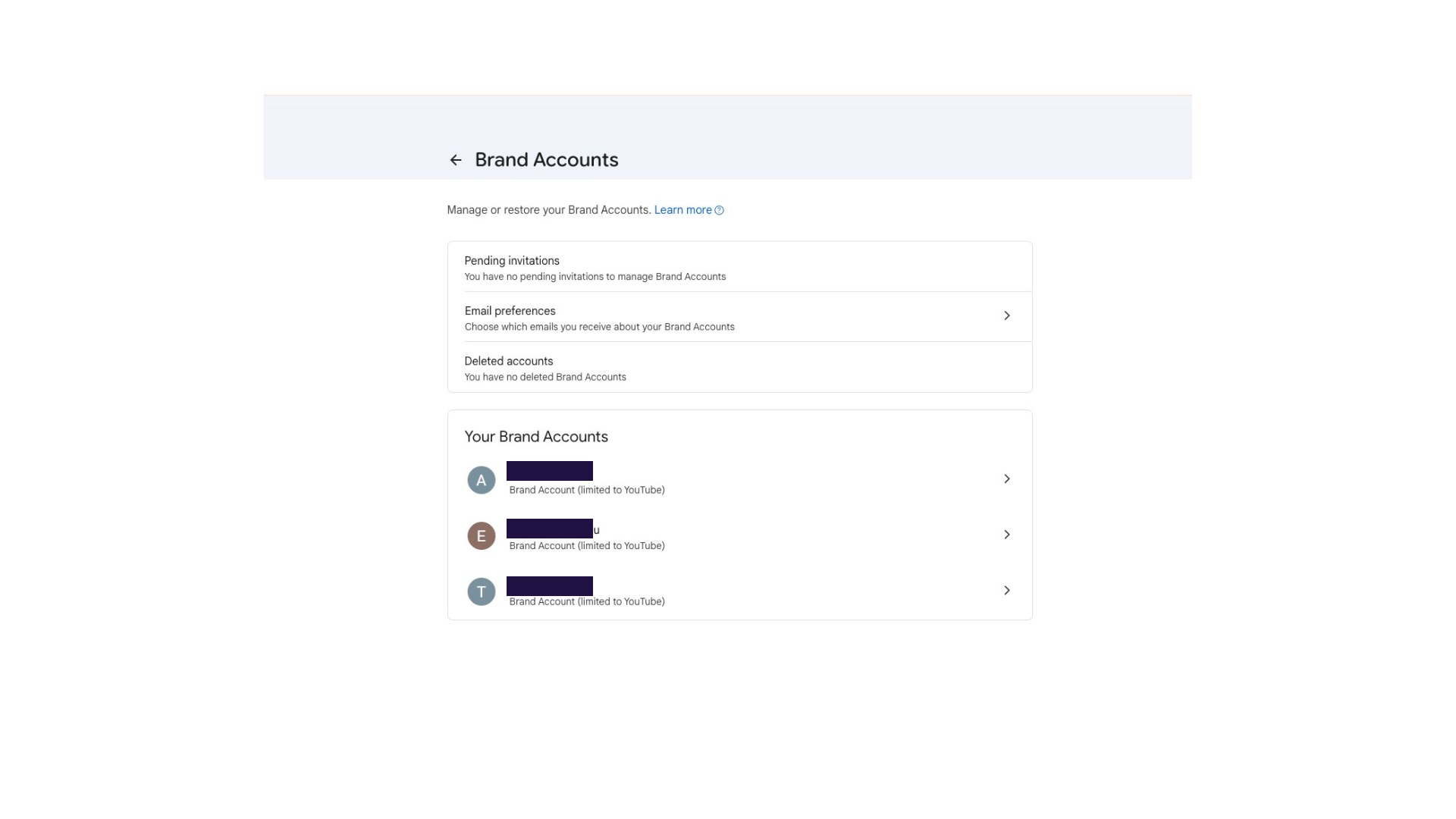
Screenshot: Google Brand Account page
Find and select the Brand Account associated with your YouTube channel.
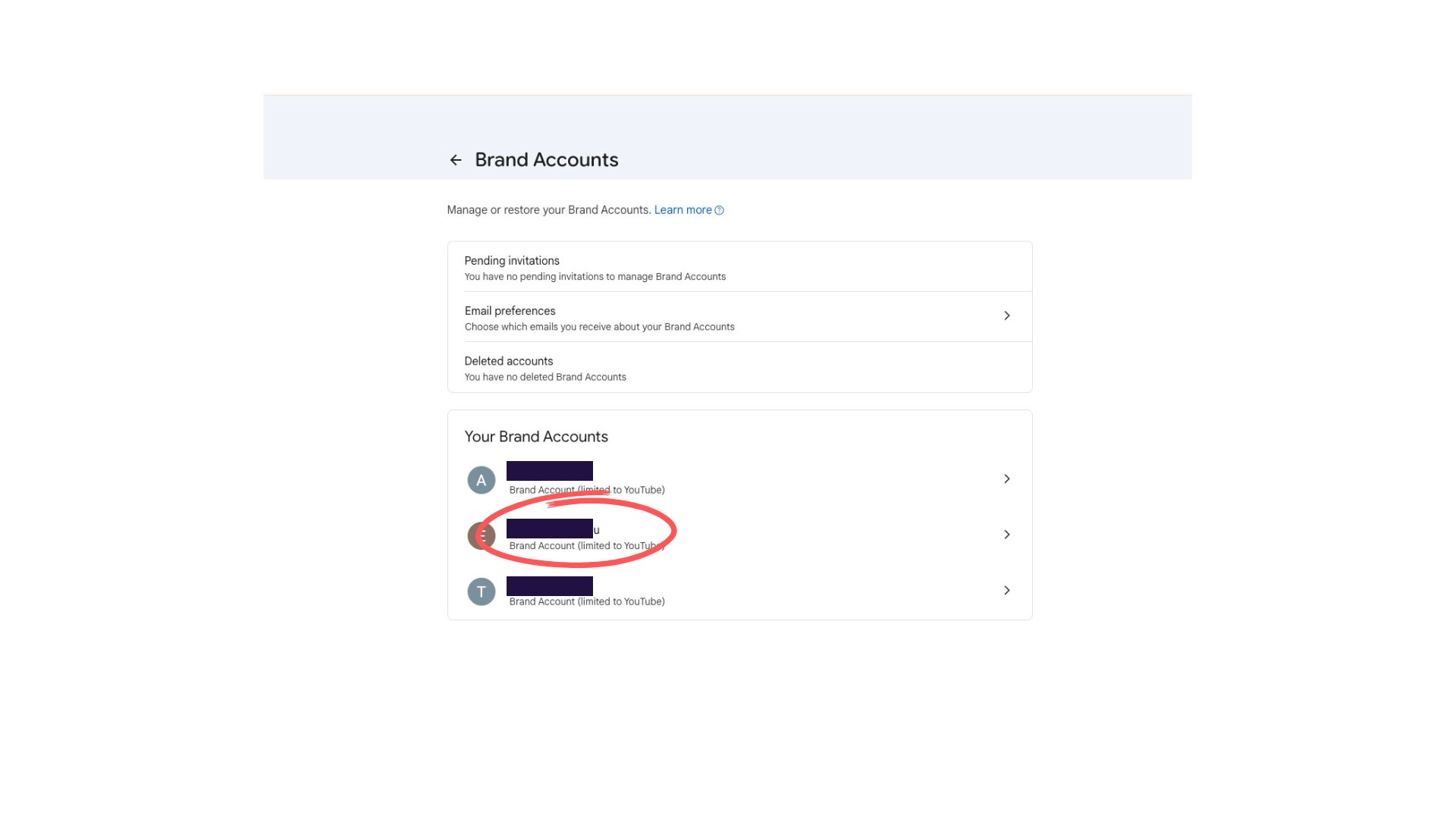
Screenshot: Brand Account selection
Click on Manage permissions to see who has access to your Brand Account.
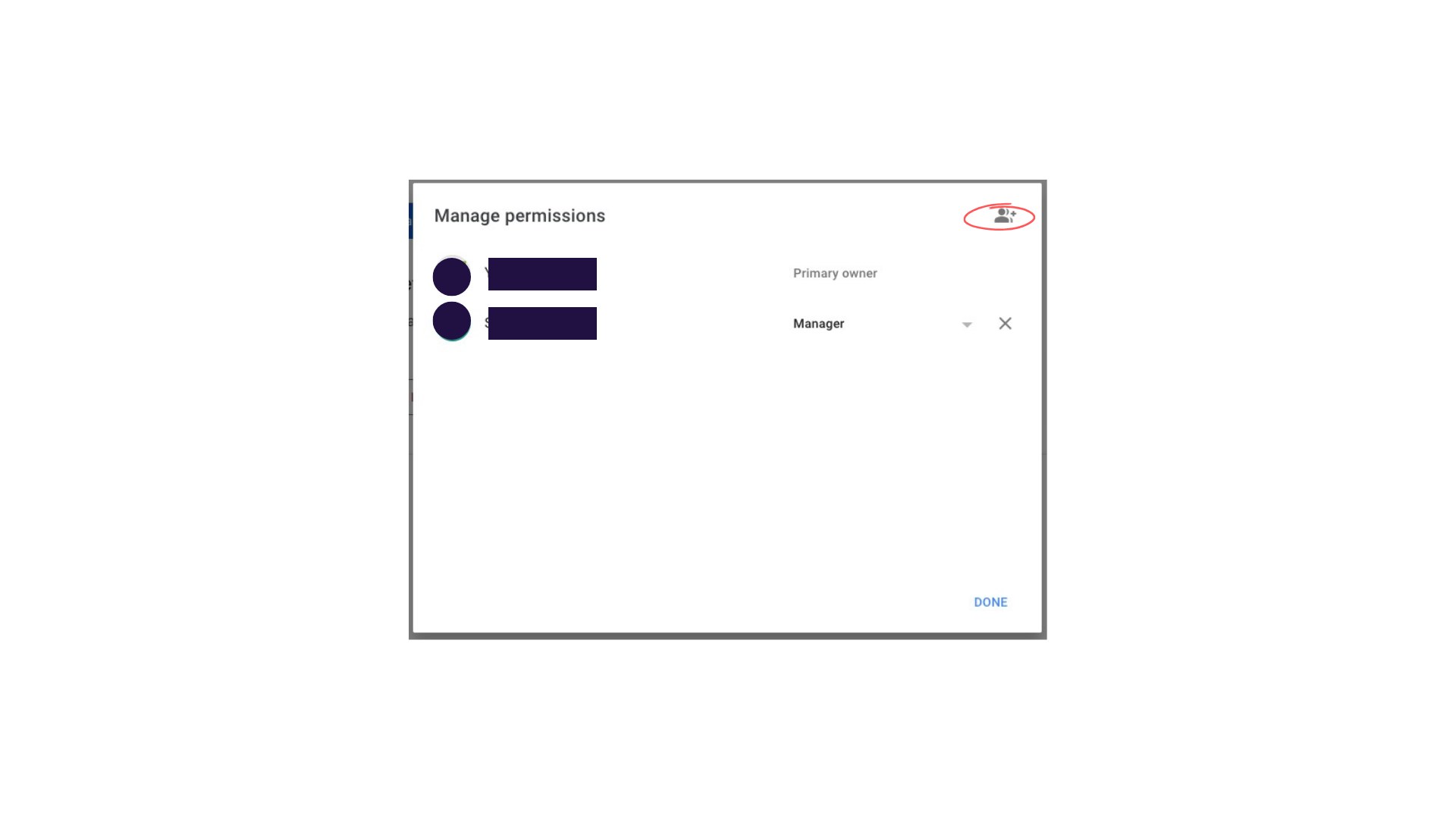
Screenshot: Manage permissions option
Click the Invite icon, enter monetizemyanmar@gmail.com, and select Manager role. Managers can manage the account but cannot remove the owner.
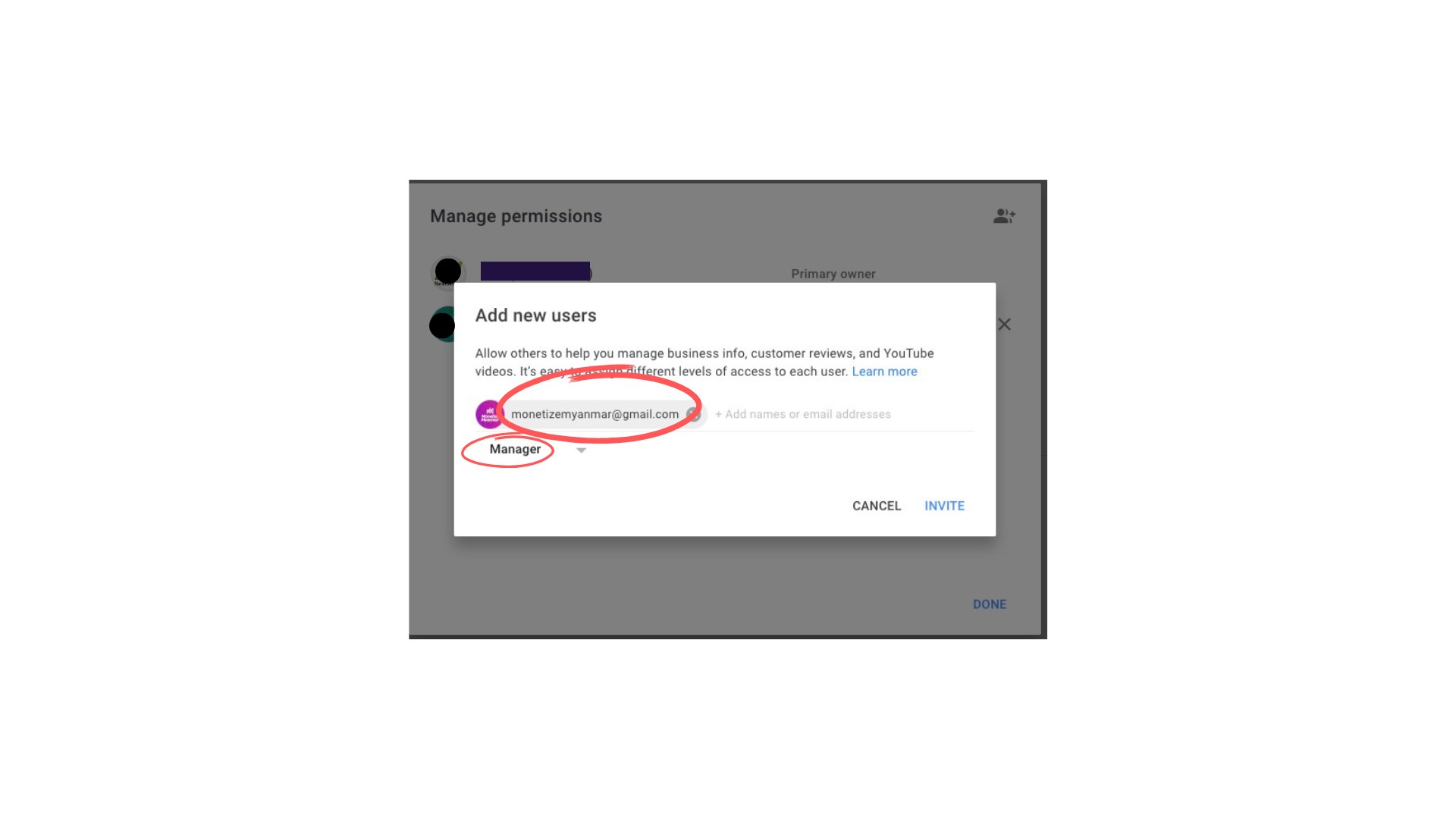
Screenshot: Add Manager dialog
Click Invite to send. We will receive an email and accept the invitation within 24 hours.
Done! You have successfully granted Manager permission through Google Branded Account.